Chase Phishing Scam Close Call
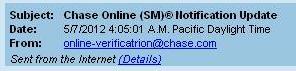
What’s wrong with this sender’s address?
I usually get phishing emails from Bank of America, but today I got an alert from Chase that almost had me fooled. Following my own advice from a previous article, How to Avoid Phishing Scams , I logged onto Chase on-line by typing in the URL address instead of clicking on the embedded email link. If the alert was authentic, it would appear in my alert history. There were no alerts to be found so I paid closer attention and immediately saw a big clue. How long did it take your eye to recognize the spelling error of “verificatrion” instead of “verification?”
What does a phishing email look like?
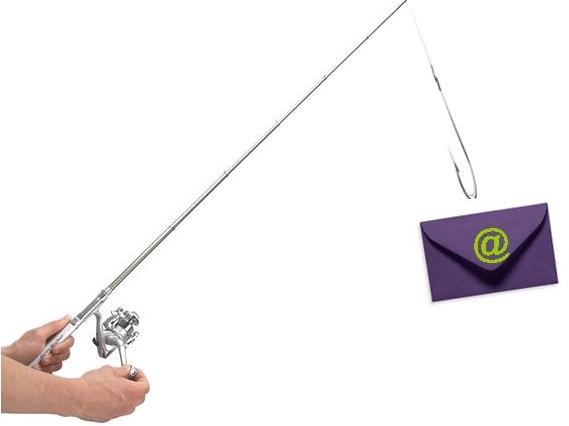
Phishing is an attempt to steal money or identity by acquiring personal information such as user names, passwords, bank account or credit card details while posing as a trustworthy entity in an electronic communication such as an email or pop-up message.
Today’s email was a classic phishing email with an incorrectly spelled word in the sender’s name as well as spelling and grammatical mistakes in the body. That said, I was rushing through my emails and would not have noticed the errors if I hadn’t stopped to think of basic on-line safety rules. Additionally, I was cautious because I found this email in my SPAM box. (Occasionally, I find legitimate emails there so I needed to look closer to be sure) See the email below and notice the errors I circled in orange.
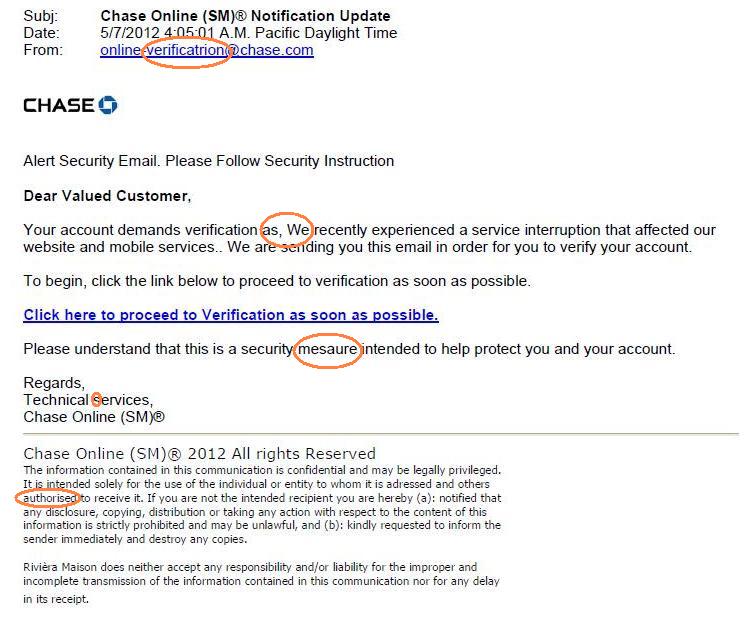
Phishing emails usually have a sense of urgency!
Watch out for Pop-Up Messages
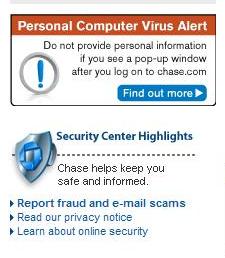
Pop Up – Virus Chase Alert
Before I signed into my Chase on-line account to verify the alert message today, I noticed a Personal Computer Virus Alert on the site. Pop-ups can be more dangerous than clicking on links in emails and they can easily compromise confidential financial information. You may mistakenly think it’s okay to fill out the pop-up because you were already careful and logged onto a site by typing in the URL. Even worse, instead of acting immediately, the virus can hide on your computer until you visit a website it was intended to target. Then it pops up and assumes you may have your guard down when it asks for private information.
Click on this “Find out more” link to get helpful tips from Chase and to see additional Chase phishing examples.
A Reminder of Some Important Do’s and Don’ts
- Do Not click on links in emails or pop-up messages that ask for personal information or that take you to your financial institutions log-in page or to a page where you need to enter financial information, user names or passwords.
- Do not cut and paste any links from the message into your Internet browser. Links may look like they go to one place, but you can end up at a different site.
- Do type in the URL or web address yourself or set up your own links to take you to your regular sites. I set up all of my links by using AOL Favorites or Bookmarks on Google Chrome.
- Do use a firewall and anti-virus and anti-spyware software and update them all regularly.
- Do look for indicators that the site is secure before inputting any personal or financial information. For example, look for a SSL Certificate, a lock icon on the browser’s status bar and a website URL that begins “https:” (the “s” stands for “secure”) instead of “http.”

Sony.com Checkout – Notice the Lock and the Https in the URL
What to do if you accidentally compromise your financial information
Hopefully you will not fall prey to a Phishing email or pop-up virus. But if you do:
- Contact the financial institution immediately and tell them what happened
- Do not go to any other sites that require financial information until you are certain you are virus-free. These include banking sites, credit card sites, shopping sites or any site where you need to input financial information.
- File a complaint at http://ftc.gov/ftc/contact.shtm
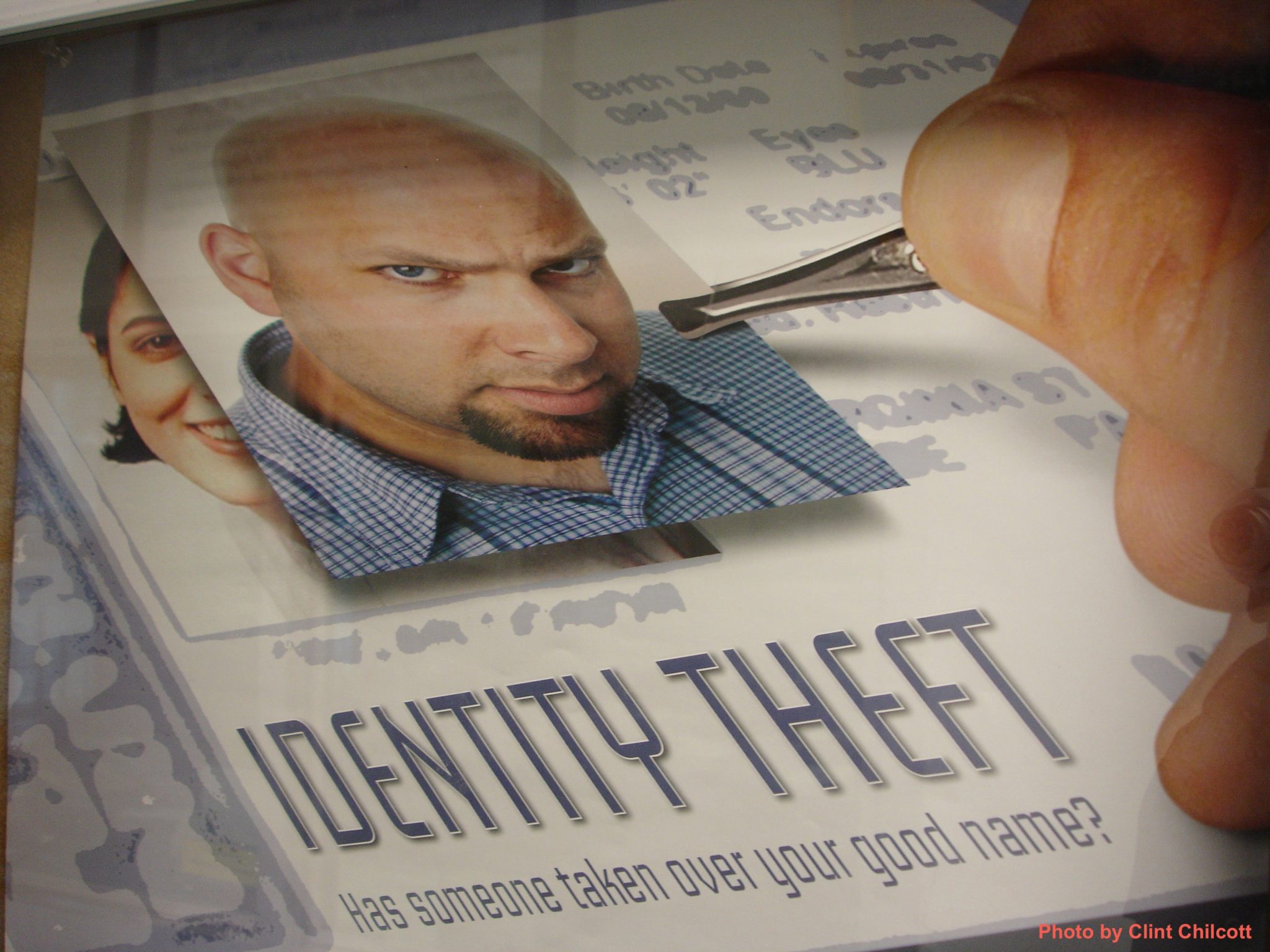
- Visit the Federal Trade Commission’s Identity Theft website at www.consumer.gov/idtheft
- Go to www.annualcreditreport.com to order a free annual credit report from any of the three major credit bureaus. You may catch an incident early as new accounts opened by identity thieves are likely to show up on your credit report.